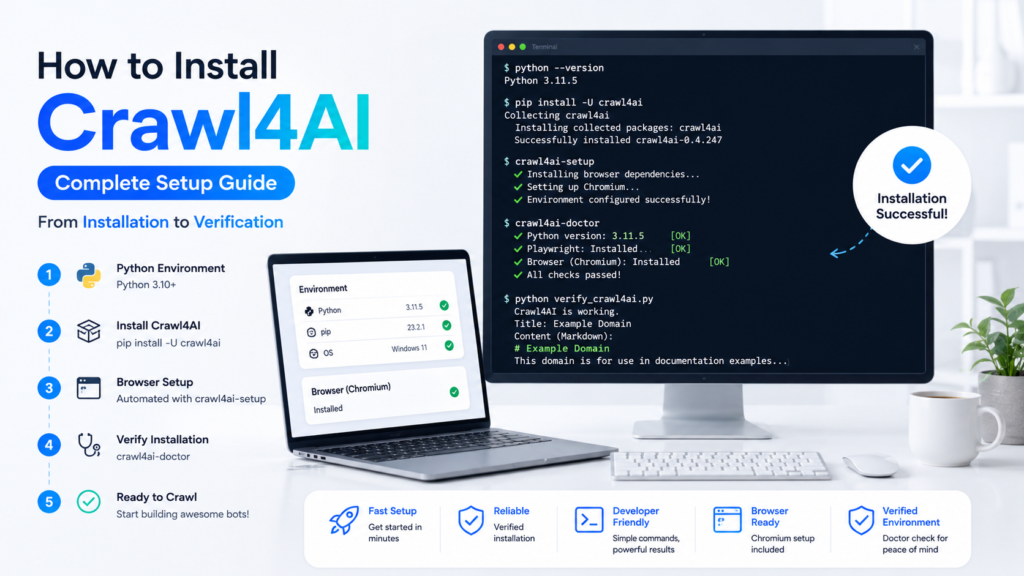
Crawl4AI installation starts with a compatible Python environment, followed by the package installation and browser setup required for web crawling. A correct setup prevents common problems involving Python versions, Playwright, Chromium, command recognition, and missing dependencies. This guide focuses specifically on getting Crawl4AI installed, verified, and ready to use.
Crawl4AI supports a straightforward pip-based installation for most developers, while optional packages are available for workflows requiring additional machine-learning features. Windows, macOS, and Linux users can follow the same basic installation process, although browser and operating-system dependencies can differ. Following the setup in the correct order makes troubleshooting considerably easier.
Crawl4AI System Requirements
Crawl4AI requires Python 3.10 or newer. Checking Python before installing anything can save time because an unsupported Python environment may prevent the package or its dependencies from working correctly.
Check the installed Python version:
python --version
Some systems use python3 instead:
python3 --version
A compatible result should report Python 3.10 or a newer supported release.
Basic requirements include:
- Python 3.10+
- pip package manager
- Internet connection during installation
- Enough disk space for Python dependencies and browser binaries
- A terminal, PowerShell, or command prompt
- Supported operating-system libraries
Crawl4AI currently lists Python 3.10, 3.11, 3.12, and 3.13 in its package configuration.
Create a Virtual Environment
Virtual environments keep Crawl4AI dependencies separate from other Python projects. Isolation becomes useful when different projects require different package versions.
Create a project directory:
mkdir crawl4ai-project
cd crawl4ai-project
Create a virtual environment:
python -m venv .venv
Windows users can activate it with:
.venv\Scripts\activate
macOS and Linux users can activate it with:
source .venv/bin/activate
A successfully activated environment normally displays its environment name near the beginning of the terminal prompt.

Virtual environments are not mandatory for every installation, but they provide a cleaner development setup and reduce dependency conflicts.
Update pip Before Installation
Older pip versions can sometimes cause package-resolution or installation problems. Updating pip inside the active environment provides a cleaner starting point.
Run:
python -m pip install --upgrade pip
Check the installed version if needed:
pip --version
Using python -m pip can also help when a machine contains multiple Python installations because the command associates pip with the selected Python interpreter.
Install Crawl4AI with pip
Stable Crawl4AI releases can be installed directly from the Python package index.
Run:
pip install -U crawl4ai

-U tells pip to upgrade Crawl4AI when an older version is already installed.
Users performing a fresh installation can also use:
pip install crawl4ai
Package installation adds Crawl4AI and its required core dependencies to the active Python environment.
Production projects should generally use stable releases unless a specific pre-release feature is required.
Run Crawl4AI Setup
Package installation alone is not the complete setup process. Crawl4AI relies on browser technology for browser-based crawling, so the post-installation setup should run next.
Execute:
crawl4ai-setup
Setup handles browser-related dependencies and performs environment checks needed to prepare Crawl4AI for crawling.
Allow the command to finish instead of closing the terminal while browser components are being downloaded or configured.
Successful completion means the environment has moved beyond the Python package installation stage and has the supporting browser components Crawl4AI expects.
Verify Crawl4AI with Doctor
Crawl4AI provides a diagnostic command for checking the environment.
Run:
crawl4ai-doctor
Diagnostics can identify problems involving Python compatibility, browser installation, environment configuration, or conflicting libraries.
Successful diagnostics provide useful confirmation that installation and browser setup are functioning together.
A failed diagnostic does not always mean Crawl4AI needs to be completely reinstalled. Reading the reported error first usually identifies the missing component.

Fix Playwright or Chromium Installation Problems
Browser-related errors are a common category of installation problem because Crawl4AI uses browser automation.

Start by running setup again:
crawl4ai-setup
Persistent Chromium-related problems can be handled by manually installing the required browser:
python -m playwright install chromium
Linux environments that also require browser system dependencies may use:
python -m playwright install --with-deps chromium
Administrative permissions or missing operating-system packages can also affect browser installation. Error messages should be reviewed before repeatedly reinstalling the Python package.
Run the diagnostic command again after fixing browser dependencies:
crawl4ai-doctor
A successful doctor check provides a much better signal than assuming installation worked because pip finished without an error.
Check the Installed Crawl4AI Package
pip can confirm whether the package exists in the currently active environment.
Run:
pip show crawl4ai
Output should contain package information such as its name, installed version, and installation location.
Another useful command is:
pip list
Search the output for Crawl4AI if you need to inspect packages installed in the environment.
Package information appearing in one terminal but not another can indicate that different Python environments are active.
Test the Python Import
A quick import test verifies that the current Python interpreter can locate Crawl4AI.
Run:
python -c "import crawl4ai; print('Crawl4AI import successful')"
Expected output:
Crawl4AI import successful
ModuleNotFoundError Usually indicates that Crawl4AI was installed into a different Python environment or that the expected virtual environment is not active.
Check interpreter locations when necessary.
Windows:
where python
where pip
macOS or Linux:
which python
which pip
Python and pip should point to the environment you intend to use.
Verify Installation with a Simple Crawl
A practical final check is loading a simple public webpage and confirming that Crawl4AI returns content.
Create a file named:
verify_crawl4ai.py
Add:
import asyncio
from crawl4ai import AsyncWebCrawler

async def main():
    async with AsyncWebCrawler() as crawler:
        result = await crawler.arun(
            url="https://example.com"
        )

        if result.success:
            print("Crawl4AI is working.")
            print(result.markdown[:300])
        else:
            print("Crawl failed:", result.error_message)

if __name__ == "__main__":
    asyncio.run(main())
Run the file:
python verify_crawl4ai.py

A working environment should open the page through the crawler and return Markdown content from Example Domain.
This test checks more than an import. It confirms that Python, Crawl4AI, browser automation, and an actual crawl can work together.
Install Optional Crawl4AI Features
Core installation is sufficient for standard crawling tasks. Additional dependencies should only be installed when a project actually needs them.
PyTorch-related features can be installed with:
pip install "crawl4ai[torch]"
crawl4ai-setup
Transformer-related dependencies can be installed with:
pip install "crawl4ai[transformer]"
crawl4ai-setup
A broader installation containing optional features is available with:
pip install "crawl4ai[all]"
crawl4ai-setup
Optional installations can consume considerably more disk space and memory than the core package. Installing everything by default therefore provides little benefit for a simple crawling project.
Models required by supported optional workflows can also be downloaded when necessary:
crawl4ai-download-models
Model downloads should be treated as an optional step rather than part of every basic installation.
Install a Specific Crawl4AI Version
Projects sometimes need a fixed package version for reproducibility.
Python packages support version-specific installation using:
pip install crawl4ai==VERSION
Replace VERSION with the release required by the project.
Pre-release builds can be installed using:
pip install crawl4ai --pre
Pre-release software can contain newer functionality but may change more frequently. Stable versions are generally a safer choice for production environments.
Pinning the working version in project dependencies can prevent an unexpected package upgrade from changing application behavior.
Upgrade Crawl4AI
Existing installations can be upgraded with:
pip install -U crawl4ai
Run setup again after an important upgrade:
crawl4ai-setup
Then verify the environment:
crawl4ai-doctor
Testing an existing project after upgrading is important because new releases can introduce changes beyond the package installation itself.
Common Crawl4AI Installation Errors
crawl4ai-setup Command Not Found
Command-not-found errors often mean the package’s executable directory is unavailable in the current PATH or Crawl4AI was installed in another Python environment.
Activate the intended virtual environment and confirm installation:
pip show crawl4ai
Reopening the terminal can also help after PATH-related changes.
ModuleNotFoundError: No module named 'crawl4ai'
Python is probably using an interpreter different from the one where pip installed the package.
Compare:
python --version
pip --version
Using the interpreter directly for package installation can reduce ambiguity:
python -m pip install -U crawl4ai
Browser Executable Not Found
Missing Chromium or Playwright browser files can prevent browser-based crawling.
Run:
crawl4ai-setup
Manual fallback:
python -m playwright install chromium
Permission Error During Installation
Installing inside a virtual environment can avoid many system-level permission problems.
Avoid modifying a system Python installation when an isolated project environment can be used instead.
Installation Works but Crawl Fails
Successful package installation does not guarantee browser setup is complete.
Run:
crawl4ai-doctor
Then verify Playwright and Chromium before changing crawler code.
Windows Installation Checklist
Windows users can follow this order:
- Install a supported Python version.
- Confirm
python --version. - Create and activate a virtual environment.
- Upgrade pip.
- Install Crawl4AI.
- Run
crawl4ai-setup. - Run
crawl4ai-doctor. - Run the verification crawl.
PowerShell execution-policy settings can sometimes affect virtual-environment activation. Command Prompt provides an alternative if activation is blocked.
macOS and Linux Installation Checklist
macOS and Linux users follow essentially the same Python installation flow.
Use python3 instead of python when the operating system maps those commands differently.
Linux browser errors can require additional system dependencies. Playwright’s dependency-aware installation command can help:
python -m playwright install --with-deps chromium
Running Crawl4AI inside a virtual environment remains useful because it keeps project packages separate from operating-system Python packages.
Crawl4AI Installation FAQ
What Python version does Crawl4AI require?
Crawl4AI currently requires Python 3.10 or newer.
Does Crawl4AI install with pip?
Yes. Standard installation uses pip install crawl4ai or pip install -U crawl4ai.
Why should I run crawl4ai-setup?
Setup prepares browser dependencies and performs environment checks required for browser-based crawling.
What does crawl4ai-doctor do?
Doctor performs diagnostics that help verify Python compatibility, Playwright/browser setup, and other environment conditions.
Do I need PyTorch to install Crawl4AI?
No. PyTorch-related dependencies belong to optional functionality and are not required for the basic installation.
Should I install every optional dependency?
No. Core installation is preferable when advanced dependencies are unnecessary. Larger optional packages increase installation size and resource requirements.
How do I know Crawl4AI is installed correctly?
Successful package detection, import testing, doctor diagnostics, and a basic crawl together provide strong verification that the environment is ready.
Conclusion
Crawl4AI installation becomes straightforward when the environment is prepared in the correct order: verify Python, create an isolated environment, install the core package, complete browser setup, run diagnostics, and finally perform a real crawl. This sequence also makes errors easier to isolate because every stage has a clear verification point.
Crawl4AI should be considered fully ready only after the package and browser environment work together. crawl4ai-doctor Provides useful diagnostics, while a successful crawl of a simple page confirms the practical setup. Optional machine-learning packages and pre-release builds can then be added only when a specific project requires them.